Recurring events and series
If the same event takes place more than once, create a separate event for each occurrence and group them into an event series. The quickest way to create another occurrence is to duplicate an existing event. This works well for theatre performances, movie screenings and concert tours. On the series page, ticket buyers can choose a suitable occurrence and purchase a ticket for it.
If you would like to create a page featuring a hand-picked selection of different events, such as a festival programme or another themed selection, create a collection.
Creating a series
Open your event list and find the event for which you would like to create another occurrence.
Select "Duplicate" from the three-dot menu.
In the window that opens, select "In a new series with the original". A new occurrence will be created and grouped into the same series as the original event.
Adding events to a series
Go to the Series tab and find the series to which you’d like to add new occurrences.
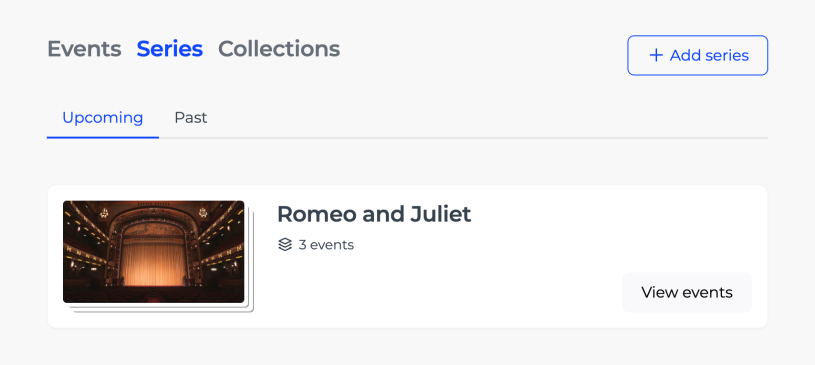
Click "View events" to open the series management view and see all events in the series.
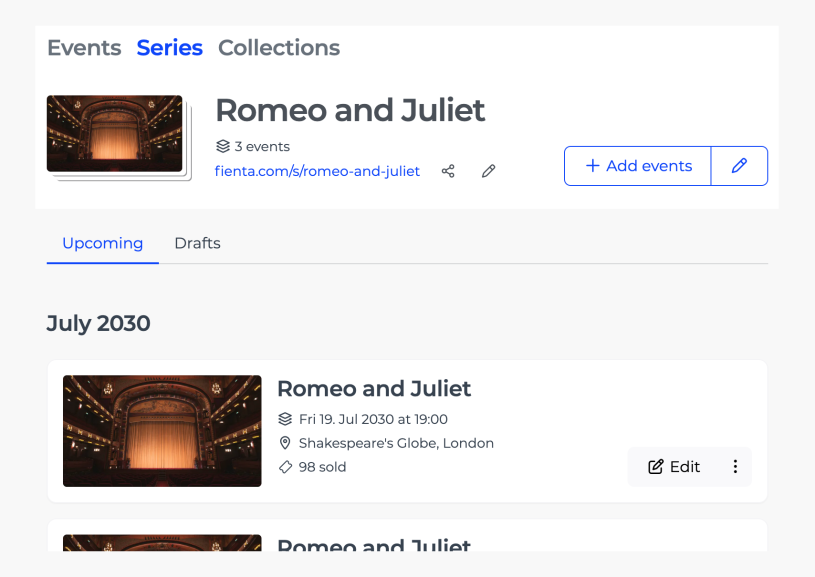
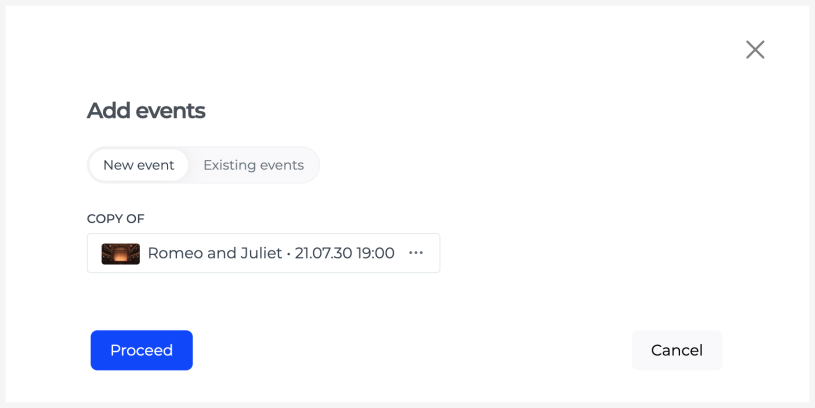
To add a new occurrence, click “Add events”. You can:
Create a new event by duplicating an event already in the series, or
Add one or more existing events that are not yet part of this series. If an existing event already belongs to another series, it will be moved to the new series.
Editing events in a series
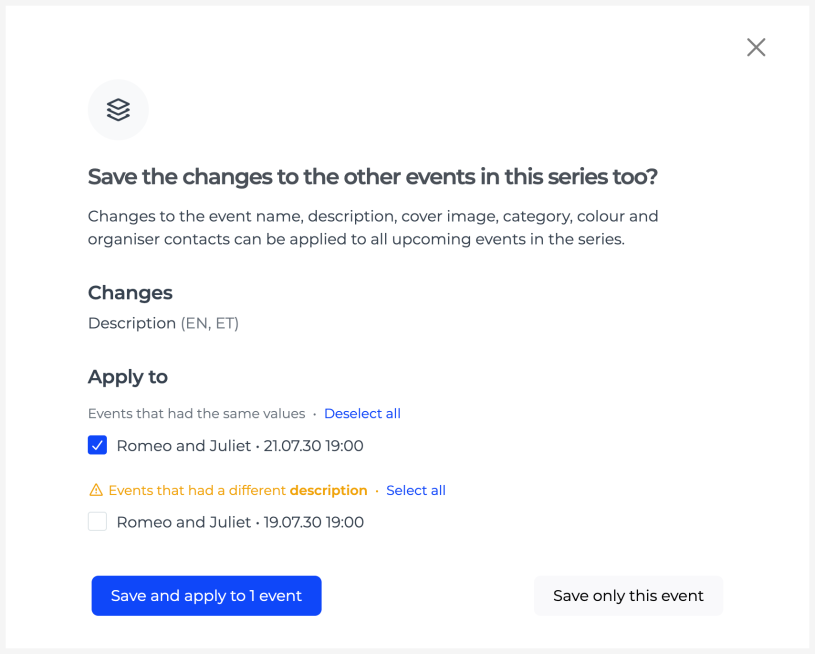
When you edit general information about an event in a series, such as its title, description or image, you can choose to apply the same changes to other upcoming events. When saving, you will see which changes can be applied to them. Events whose existing information is different are marked with a warning so that you do not accidentally overwrite important content.
Other details, such as the event date and time, venue or ticket types, must be edited separately for each event.
Removing an event from a series
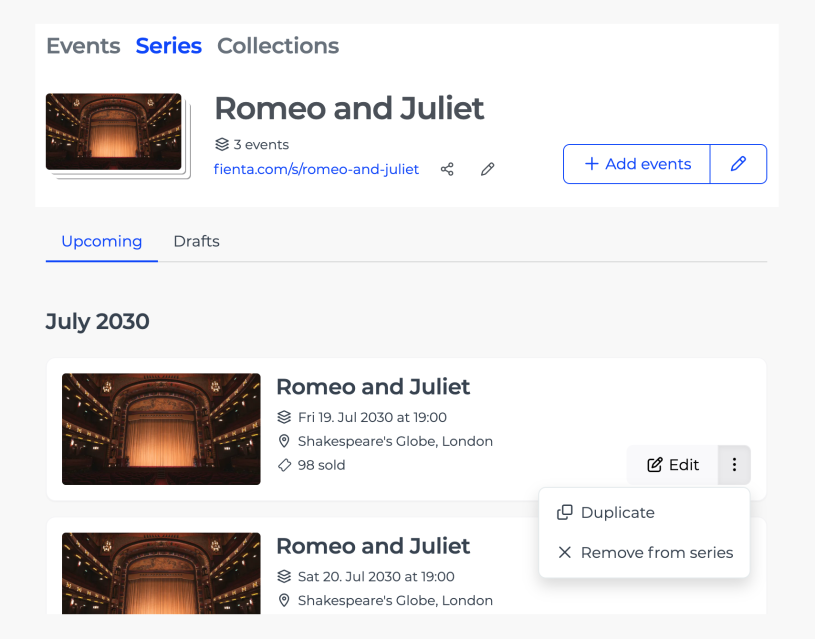
On the series management page, find the event you would like to remove and select "Remove from series" from its three-dot menu. The event will remain in your account as a separate event.
Editing the series page
On the event series page the buyer will see the series information, can select a suitable date and purchase a ticket to that date.
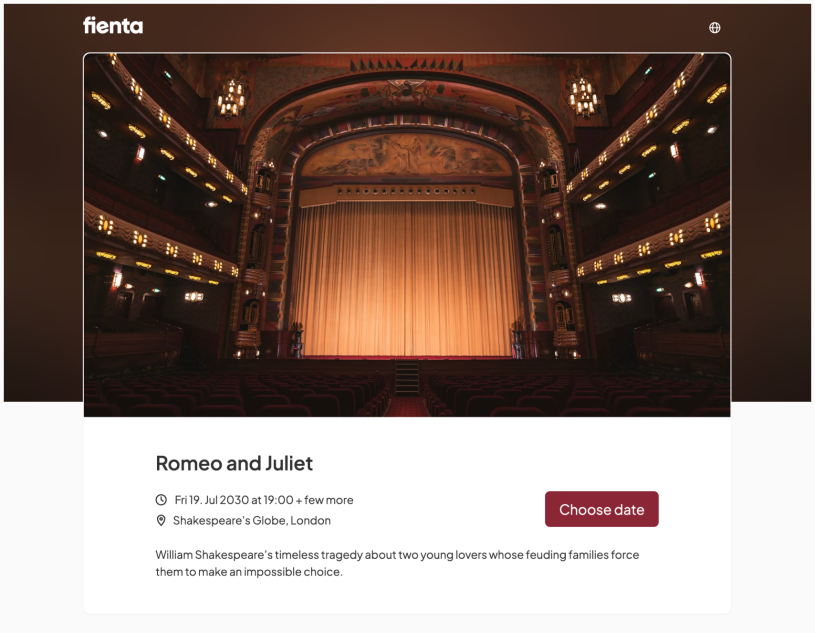
By default, the series page uses the title, description and image of the next upcoming event in the series. If needed, you can provide a separate title, description and image for each language. To do this, click the pencil icon next to Add events on the series management page.

Sharing the series
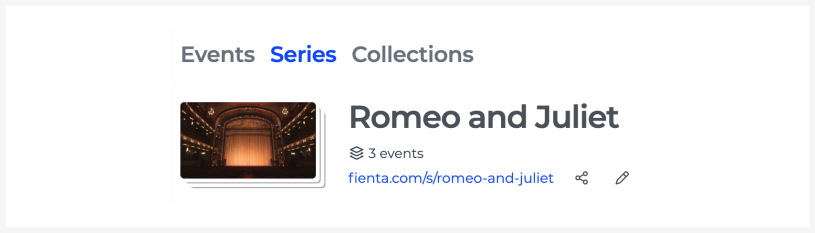
An event series has its own link containing the prefix "s", for example fienta.com/s/event-name. You can find the link at the top of the series management page.
The sharing button also lets you create a marketing link or download a QR code.
To edit the address of the series page, click the pencil icon next to the link. Please note that the previous link will stop working after the address is changed.