Registration forms and requesting additional information
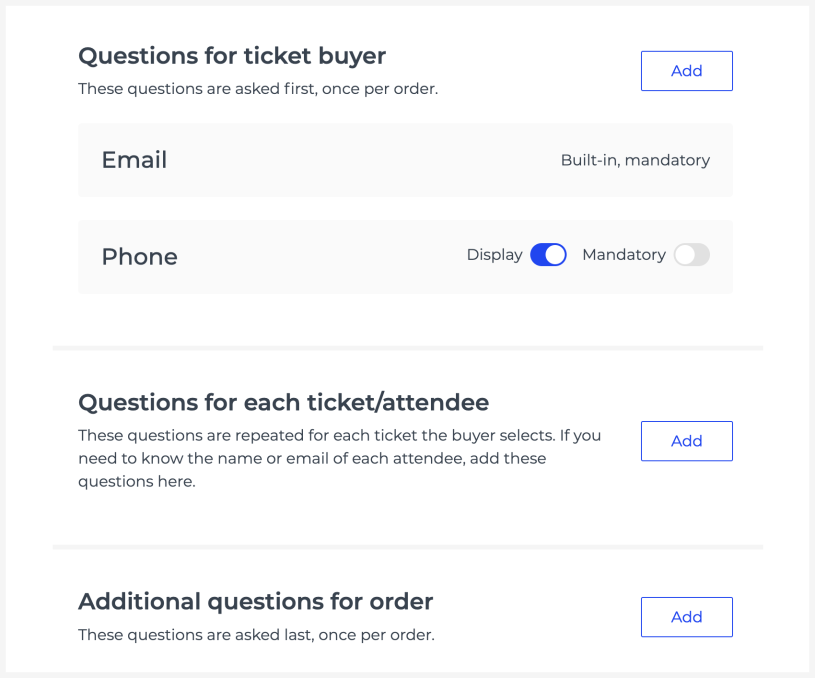
By default, when completing a ticket purchase or registering for a free event, your customers only need to enter an email address to receive the confirmation email with the ticket. If you need more information about the buyer or attendee, such as their name, organisation, or dietary preference, you can add additional questions to the checkout page. These can be shown either once per purchase or separately for each ticket.
Setup
You can set up the order form at "Edit" > "Order form" in the event view. To add a question, choose whether you want to collect the information once for the entire order or separately for each ticket or attendee.
For example, the latter is useful when you need to collect a set of data for each participant – name, position, email address, etc.
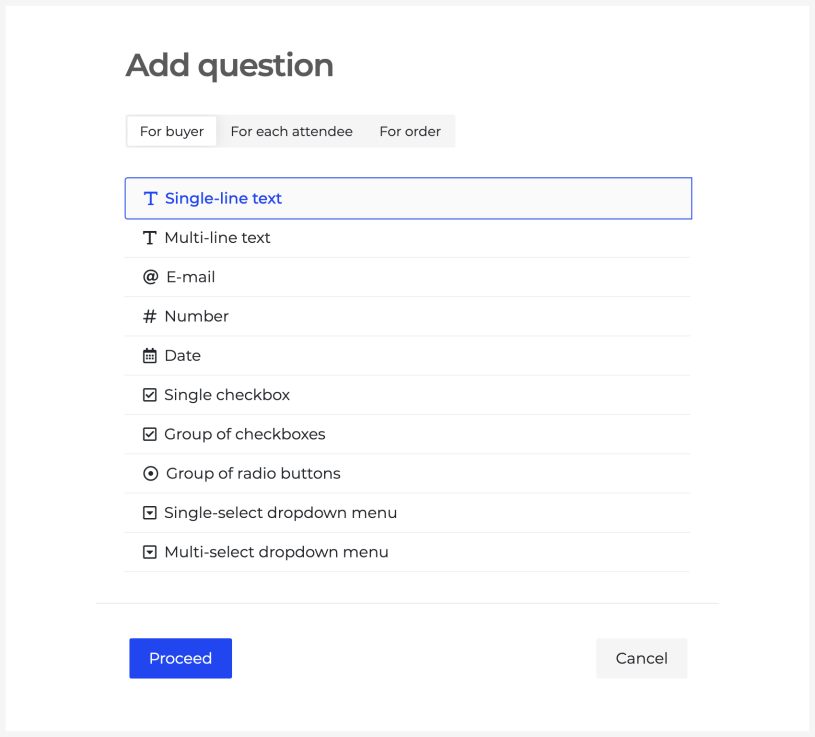
Depending on the data you collect, you can choose the most suitable answer format:
Questions where the respondent must enter a value: text, email address, number and date.
Questions where the respondent must choose exactly one option: radio buttons and single-select dropdown menu.
Questions where the respondent can choose one or more options: checkboxes and multi-select dropdown menu.
You can mark questions as mandatory and require answers to be unique within the event, for example so that each participant must use a different email address.
All fields are visible by default, but you can set them to appear only when the buyer selects specific ticket types.
You can also hide a question so it does not appear on the checkout page while keeping the answers visible to you in the backend.
Questions in different languages
For multilingual events, you can enter the question label in each language.
Answers
You can view all answers submitted through the order form in the event view under "Sales" > "Orders & tickets" > "Tickets", where you can also download them in XLS format.
You can display the answers in the ticket email, PDF, or scanner when validating the ticket. You can find the relevant settings on the question creation page.
Filling out the registration form after the purchase
By default, the entire order form is displayed when making a purchase.
You can also enable an additional setting that hides ticket- or participant-specific fields during checkout. In that case, after payment, the buyer will receive a private link by email that allows them to forward tickets and fill in ticket-specific details.
If you would like to use the ticket assignment feature for your event and have the order form filled out later, please contact us at [email protected].