Formatting an event description
You can format your event description using the editor toolbar or common keyboard shortcuts.
Line breaks
Line breaks work the same way as in most text editors:
Enter – starts a new paragraph
Shift + Enter – starts a new line within the same paragraph
Keyboard shortcuts
macOS / Windows
Cmd + B / Ctrl + B – bold
Cmd + I / Ctrl + I – italic
Cmd + Z / Ctrl + Z – undo
Formatting with Markdown
You can also use Markdown to format your text:
# First-level heading
## Second-level heading
### Third-level heading
*italic*
**bold*** → starts a bulleted list
1. → starts a numbered list> → starts a blockquote--- or *** → inserts a horizontal lineLinks
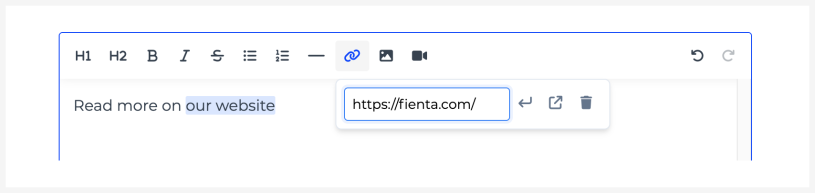
You can add a link in one of the following ways:
Select text, click the link icon in the toolbar, and enter the web address.
Select text and paste a web address onto it.
Paste a web address directly into the text field. It will automatically become clickable.
Uploading an image
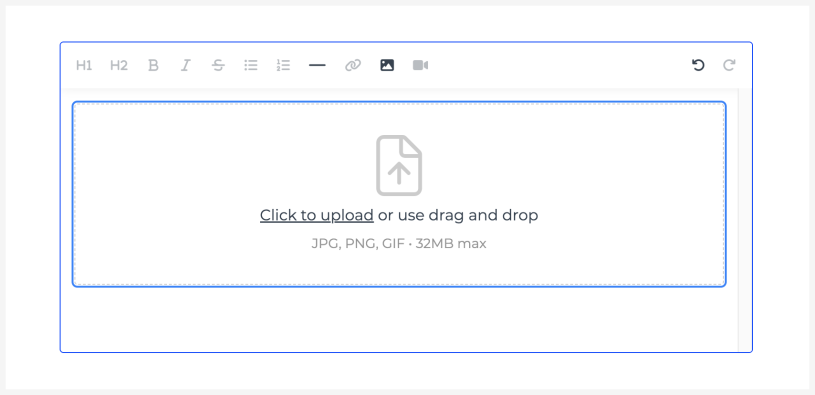
To add an image:
Click the image icon in the toolbar and select a file from your computer.
Or drag and drop an image file directly into the text field.
Or copy an image to your clipboard and paste it directly into the text field, for example from your computer, a screenshot tool, or your browser.
Adding a video
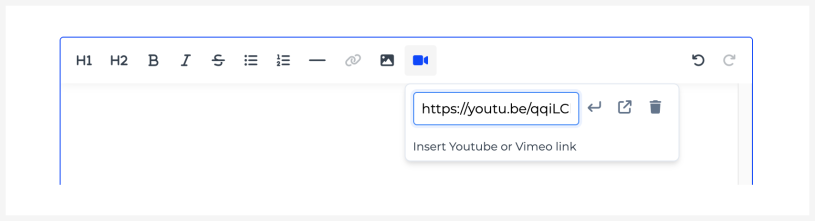
You can add videos hosted on YouTube or Vimeo.
To add a video:
Click the video icon in the toolbar and enter the video address.
Or copy the video address from your browser’s address bar and paste it into the text field.
Moving images and videos
To change the position of an image or video:
Drag it to the desired location.
Or click the element, cut it (Cmd/Ctrl + X) and paste it where needed (Cmd/Ctrl + V).
Tables
Tables are not currently supported in the text editor.