POS sales
Fienta’s POS sales feature allows you to register on-site ticket sales paid in cash or by card and print tickets.
The POS interface is web-based, so you can use it from a desktop, laptop, mobile phone, or tablet.
Prerequisites
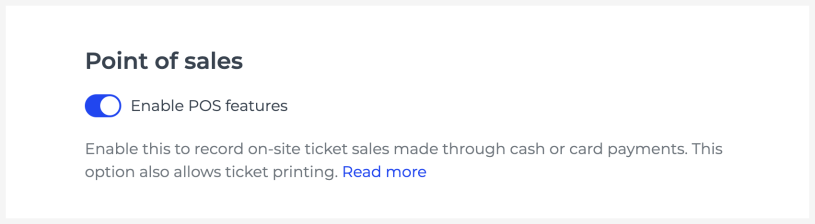
You can turn on the POS sales feature on the "Organiser settings" page.
If you need an additional user whose rights are limited to POS sales, please email us at [email protected].
Selling tickets
As a POS user
A user in a dedicated POS role can start a new sale by selecting an event from the event list.

Then select the number of tickets:
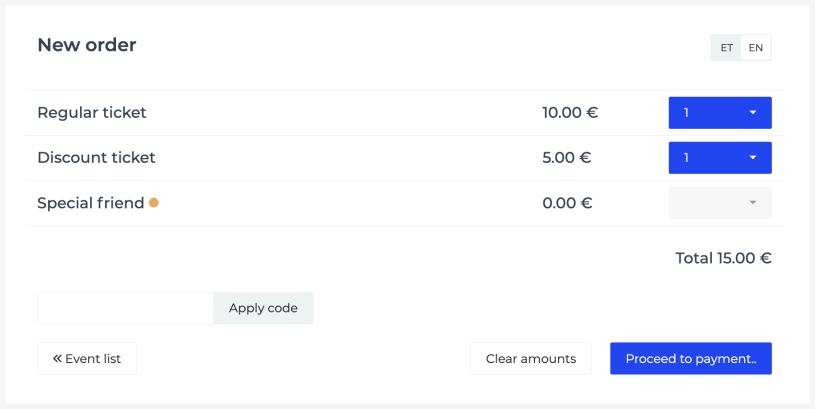
Click “Proceed to payment”, choose a payment method, and complete the order. If necessary, you can also cancel the order and tickets.

As an event organiser
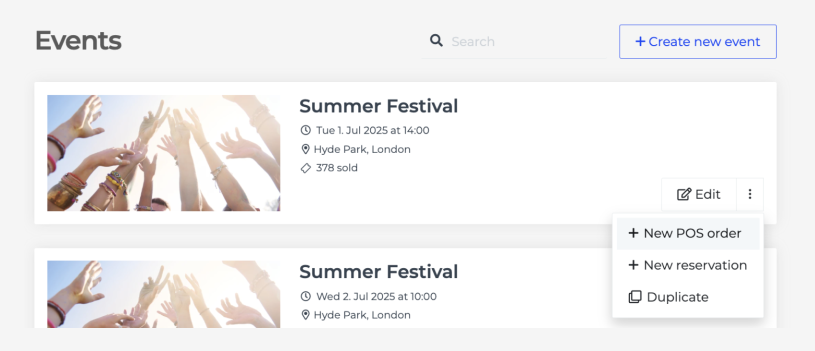
If you are logged in as the event organiser, you have more options for starting a new POS order.
From the event list, choose the event and select “New POS order” from the drop-down menu:
Or, open the event, choose “Orders and tickets”, and start a new POS order:
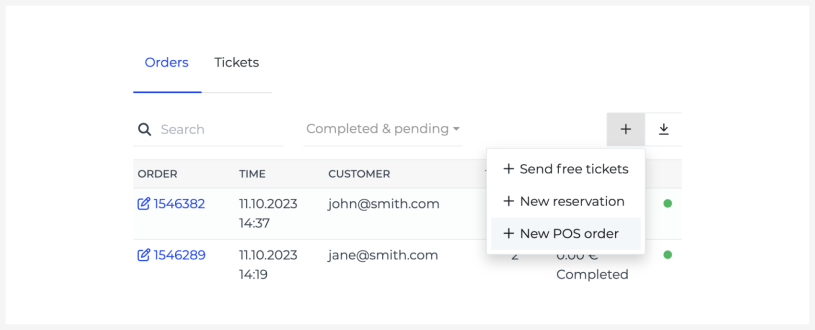
Select the tickets and proceed to payment as described above.
Printing tickets
You can print tickets on various paper types and formats:
A4 paper using a standard office printer.
A continuous roll using a receipt printer.
Fienta wallet-sized ticket blanks using the Brady BBP12. Read more about technical requirements and printer setup.
To select a printer and format, click on the menu dots next to the ticket.

Emailing a ticket or invoice
On the order page, you can also send the tickets to the customer by email or create an invoice for the purchase.
Issuing reserved tickets
You can also sell previously reserved tickets using the POS interface. To do this, find the reservation in the “Orders & Tickets” tool and select “Sell using POS”.
Reports
You can see the POS report in the “Reports” tool and download it in XLS format. By default, the same-day POS report is displayed.